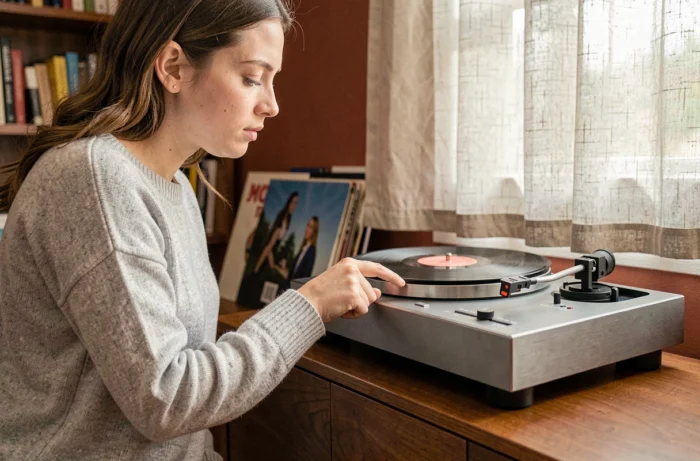
House of Marley turntables feature a Bluetooth module whose operation varies by model. Some, such as the Stir It Up Wireless, transmit vinyl audio to a wireless speaker. Others, such as the Revolution, have a physical switch that lets you choose between transmitting and receiving audio. Understanding this distinction before you even turn on the turntable prevents most pairing failures.
Bluetooth In/Out switch: the setting most users overlook
On the Revolution turntable, a switch on the back is marked “In” and “Out”. Out mode transmits vinyl audio to a Bluetooth speaker or headphones. In mode does the opposite: the turntable receives audio from a phone or tablet and plays it through its own speakers.
If the turntable appears connected in the speaker’s Bluetooth settings but no sound comes from the record, the switch is probably set to In. This isn’t a fault; the audio is simply being transmitted in the wrong direction. Switching it to Out fixes the problem immediately.
Stir It Up Wireless models don’t have this physical switch. Their Bluetooth works only in transmit mode. The pairing process is therefore more straightforward, but the principle is the same: the turntable sends the audio signal, and the speaker receives it. The page explaining how to connect a Marley turntable via Bluetooth outlines the steps for each range.
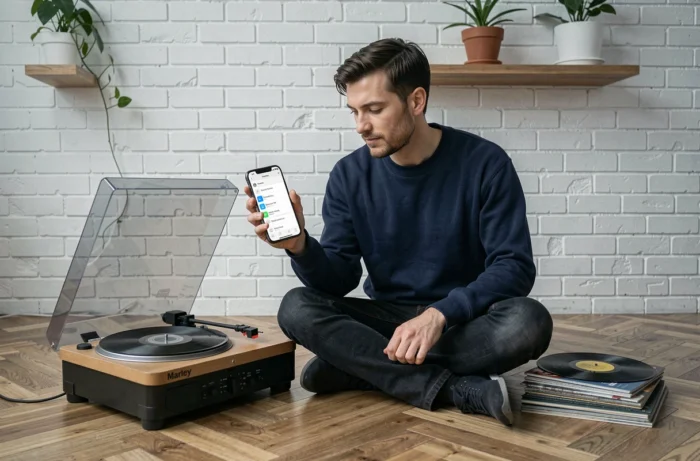
Pairing a Marley turntable via Bluetooth: step-by-step instructions
Because Marley turntables have no screen or voice confirmation, visual feedback is minimal. An LED indicator, usually located near the Bluetooth button, flashes to show that the turntable is searching for a device. Once connected, the light stays on steadily.
Prepare the turntable and speaker
Before starting the pairing process, make sure these three conditions are met:
- The turntable is on and the record is stopped (don’t start playback yet; keep the tonearm on its rest).
- The Bluetooth speaker or headphones are in active pairing mode, not just switched on. On most speakers, pressing and holding the Bluetooth button activates this mode.
- On the Revolution, the rear switch is set to Out.
Start pairing from the turntable
Press the Bluetooth button on the turntable. The LED flashes rapidly to indicate that it’s searching for a compatible device. If the speaker is already in pairing mode, the connection is established within a few seconds and the light stays on steadily.
You don’t need an intermediary phone to pair the devices. The turntable connects directly to the speaker or headphones without using an app. No PIN is required.
Common Bluetooth connection problems with Marley turntables
Pairing failures are rarely caused by a hardware fault. Several issues come up time and again.
The speaker doesn’t appear or the connection fails
The most common cause is that the speaker is switched on but not in pairing mode. A Bluetooth device that’s switched on doesn’t automatically search for new devices to pair with. You need to manually activate pairing mode on the speaker, then restart the search from the turntable.
If the turntable was already connected to another device, such as headphones, it may try to reconnect to that device first. Switching off other nearby Bluetooth devices makes it easier to find the speaker.
No sound despite a confirmed connection
On the Revolution, check the In/Out switch. On all models, check the volume on the receiving speaker. The turntable sends an audio signal at a fixed level; the speaker controls the final volume.
Another potential pitfall is the turntable’s built-in preamp. Some Marley models have a Phono/Line switch on the back. In Phono mode, the signal is too weak for a powered or Bluetooth speaker. In Line mode, the internal preamp boosts the signal to the expected level.
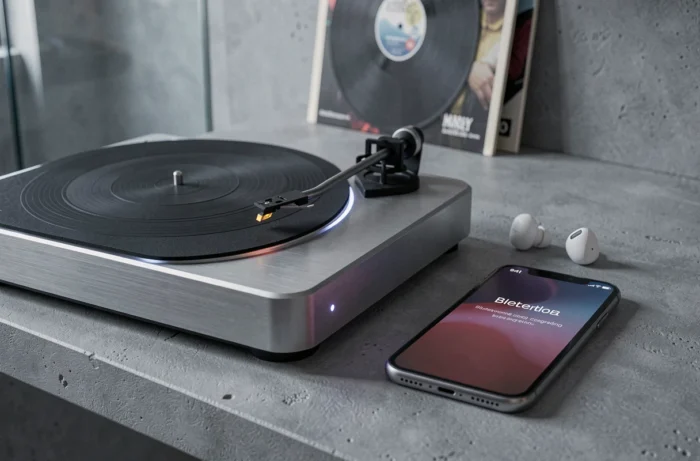
Wired RCA connection: an alternative when Bluetooth causes problems
All recent Marley turntable models still have an analog RCA output on the back. An RCA-to-3.5 mm cable, or an RCA-to-RCA cable depending on the speaker, lets you bypass Bluetooth in seconds.
This option isn’t an admission of defeat. A wired analog signal isn’t subject to compression or latency. For longer listening sessions, some people prefer this connection to wireless transmission, which introduces a slight delay that’s imperceptible when listening to music but does affect signal fidelity.
If the turntable is wired to an amplifier or powered speaker, check the preamp switch setting. An amplifier with its own phono stage expects a Phono signal. A powered speaker or system without a dedicated phono input expects a Line signal.
Check a Marley turntable’s Bluetooth direction before buying
Product listings don’t always specify which way Bluetooth works. A model labeled “Bluetooth” may receive audio, transmit it, or do both. Before buying, check whether the listing explicitly says “Bluetooth Out” or “built-in Bluetooth transmitter” for sending vinyl audio to a speaker.
An In/Out switch listed in the specifications indicates that the turntable supports both directions. Without this feature, Bluetooth is generally limited to transmitting audio. A model with “Bluetooth In” only won’t stream vinyl wirelessly; it can only receive music from a phone.
This is worth bearing in mind if you’re planning to replace a hi-fi system with a single Bluetooth speaker. The turntable needs to transmit, not receive. In the Marley range, the Stir It Up Wireless and the Revolution in Out mode do just that.